.png)
Macworld
Apple Notes has long been the go-to app for iPhone users who need a quick place to store everyday text. Whether you’re ranting, ideating, or drafting a speech, the built-in app lets you start typing instantly.
While basic text input is often enough, Apple Notes can do far more than that. To get the most out of Notes, here are 10 lesser-known features worth mastering.
1. Quick access
Locating, launching, then starting a new note (or finding the right existing one) can be time-consuming, which isn’t ideal when you’re transcribing someone’s speech or attending class. For this reason, Apple offers multiple shortcuts that allow you to start a new note efficiently.
You can add dedicated toggles to the Lock Screen and Control Center, as well as an easy-to-spot widget on the Home Screen. To access Apple Notes from anywhere, you could assign the relevant option to the iPhone’s Action button instead of navigating through software menus. Similarly, you can share text and compatible attachment types directly from first- and third-party apps to Notes to quickly bookmark or reference a certain matter.
2. Audio recording
Speaking of transcription, Apple Notes on newer iPhones can spare you from typing live speeches manually. Thanks to the on-device Neural Engine, you can start an audio recording session inside a note, and it’ll display a transcript in real time—even when you’re offline. If you’ve enabled Apple Intelligence on your iPhone, you could even view a summary of the transcript, distilling long lectures into brief takeaways.
3. Generative AI
The built-in AI features in Notes extends beyond transcript summaries. For example, you could select text you’ve typed and use the various Writing Tools to refine or alter it. These include proofreading, rewriting, tone tweaking, list or table creation, and more. If you’re not sure where to start, you could even opt for the Compose tool, which lets you prompt ChatGPT to type on your behalf.
Foundry
Apart from text, the Notes app supports native image generation using Apple’s Image Playground extension. You can pick between multiple styles, including Animation, Illustration, and Sketch, and describe the image you’re interested in. Alternatively, you could doodle on a note and use the Image Wand tool to have the AI generate a more polished version of your sketch.
4. Protection
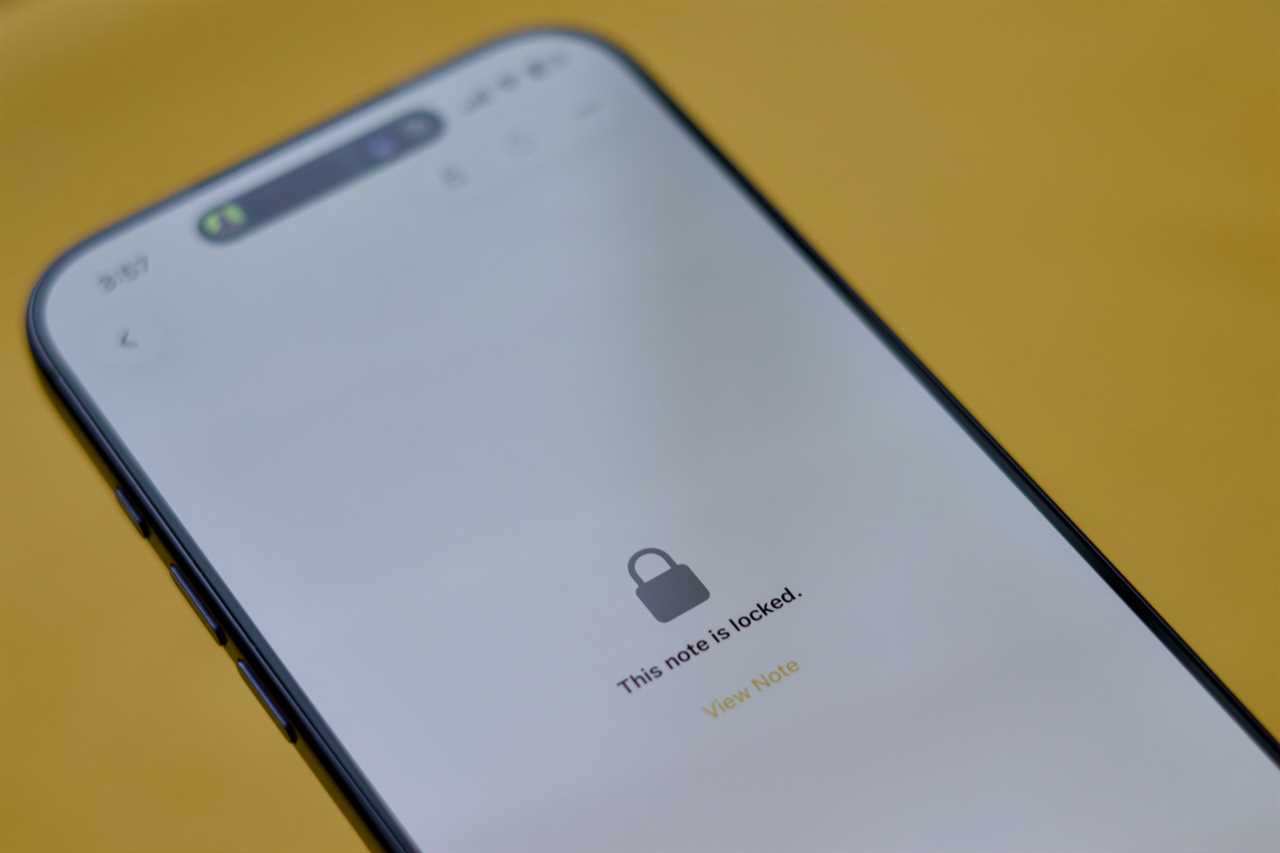
Many iPhone users rely on the Notes app to store sensitive details. Fortunately, you can lock individual notes using a password or Face ID authentication. Once you set up the feature in the Notes app’s settings, you can find the Lock option under each note’s three-dot menu.
But what if you want to lock all of your notes? Well, you don’t need to individually go through each and every one of them. Instead, you could hold down the Notes app’s icon on the Home Screen and lock the app itself. This will stop your nosy roommates from accessing the app altogether.
Foundry
5. Organization
Some users have been actively storing notes on their iPhones for years, making the all-time archive a bit overwhelming to manage and sift through. Apple Notes offers multiple features to help you organize your content and quickly locate specific items.
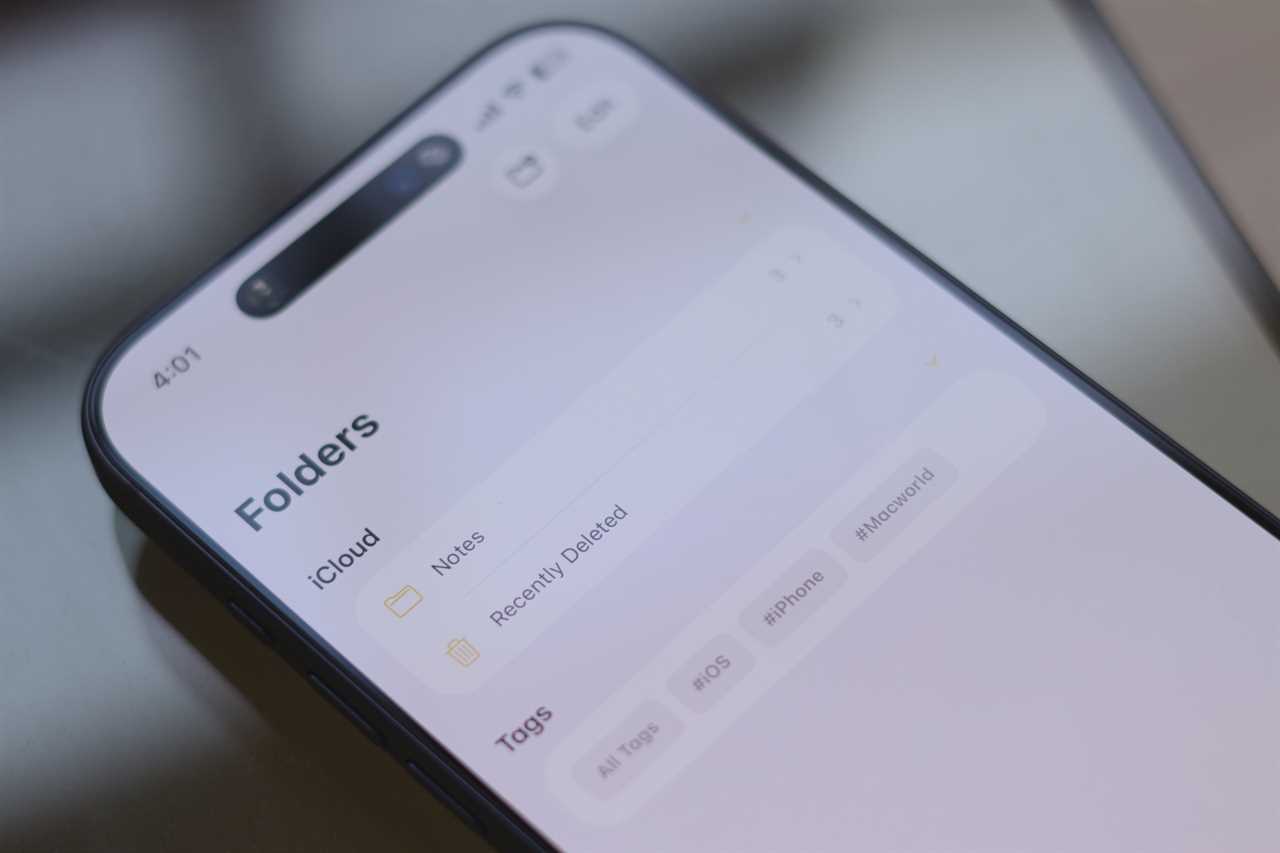
For starters, you can create folders dedicated to your various projects and place related notes in the same spot. You can also insert hashtags (#topic) in notes to sort them based on their relevant topics. Do you frequently access a particular note? You can pin that to the top of the list.
Foundry
You could also build a knowledge base and link notes to each other by adding a link attachment and typing the desired note’s name. These tools, coupled with the reliable search feature (that even works with handwritten notes), make it easy to find a specific note, no matter how old it is.
6. Personalization
While many iOS users rely on Apple Notes for plain text storage, the app supports a wide range of formatting and personalization tools. You could add lines or grids as a background using a note’s three-dot menu or select text to customize its look. Some of the formatting options include bold text, italics, underlining, colorful highlights, bullet points, indexing, and more. You could also insert tables to visualize data in a simple form.
7. Scanning
Text input in Apple Notes isn’t limited to typing and audio transcribing. You could rely on the text scanner found under attachments to insert text printed on a real-life object or document. Alternatively, you could pick the document scanner, which digitizes the paper and adds it as an attachment (rather than plain text) to your note. If you find the document size overwhelmingly large, you could switch to a smaller thumbnail using the Attachment View option found under the note’s three-dot menu.
8. Smart perks
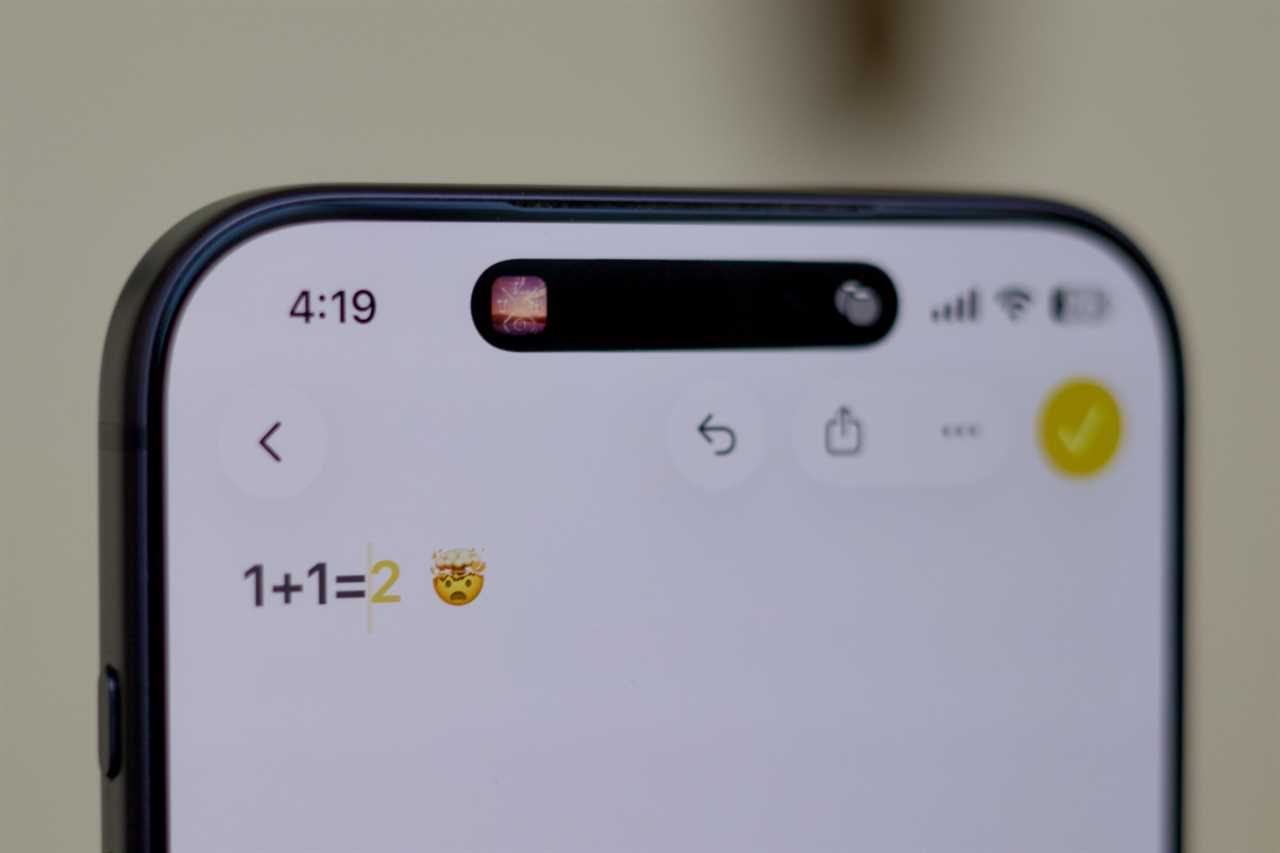
Besides Apple Intelligence tools, the Notes app offers a couple of smart features that students will especially appreciate. If you’re taking handwritten notes using the Markup feature, you can tap and hold on your scribbles and hit the Refine button to make your handwriting more legible. Otherwise, if you’re typing mathematical equations in a note, the built-in iOS keyboard will suggest in-line solutions.
Foundry
9. Collaboration
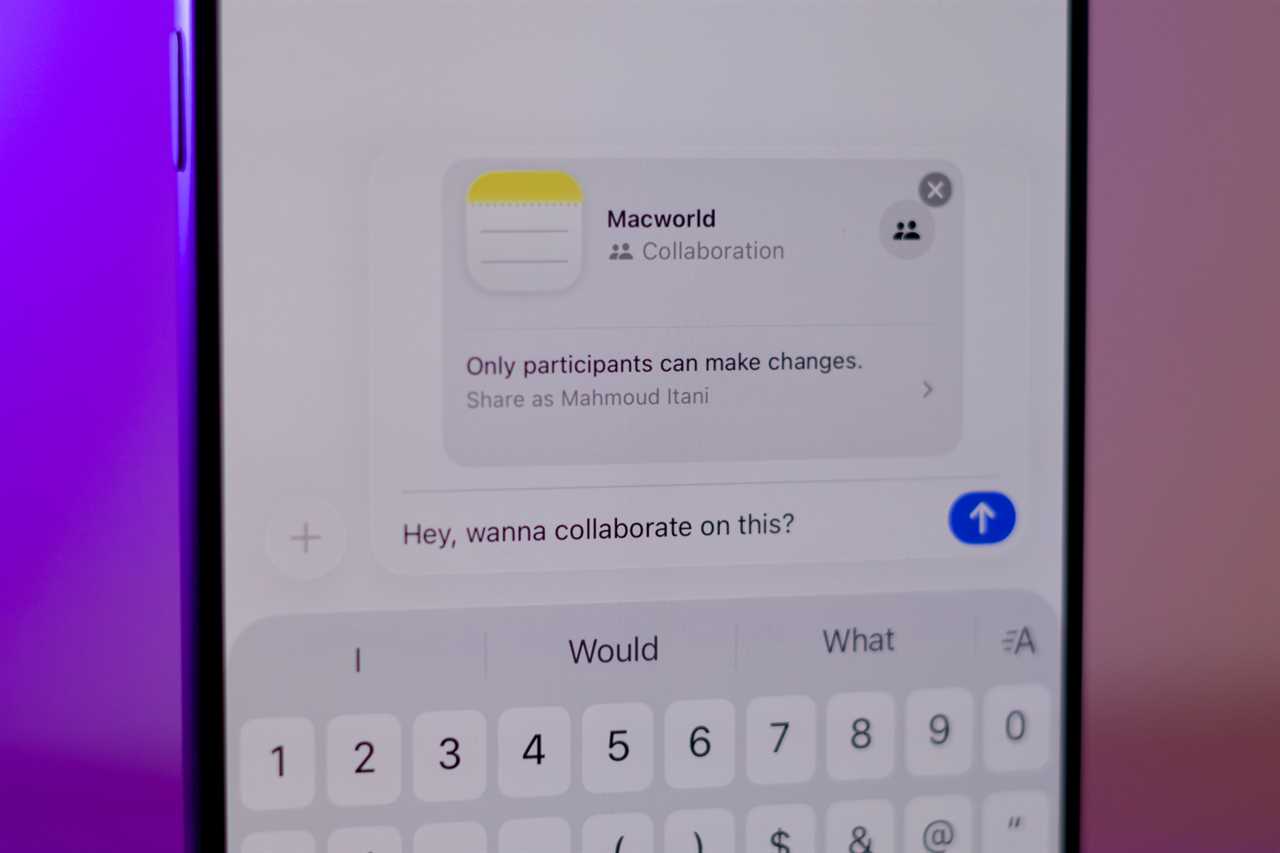
You’ve long been able to share notes as static files with others. That, however, isn’t practical when you’re expecting edits or feedback from the recipient. Luckily, Apple Notes offers a collaboration feature that lets multiple users view and amend notes simultaneously. Simply hit the Share button on a note and select Collaborate in the drop-down menu before sending it via an app of your choice. Once the recipient accepts your invite, you’ll be able to revise together, tag each other, and get work done more efficiently.
Foundry
10. Data transfer
While Notes is a powerful tool for text-related tasks, it still lacks plenty of advanced features found in dedicated document editors. If you’re ready to take your project to the next level, you could hit the Share button on a note and open it in Pages or another document editor to unlock even more tools and customizations—including Apple Creator Studio exclusives. Alternatively, you can export it as a Markdown file and proceed accordingly using a compatible app.
Read More
Title: Apple Notes is loaded with hidden tricks
Sourced From: www.macworld.com/article/3066235/think-you-know-apple-notes-try-these-10-hidden-tricks.html
Published Date: Wed, 25 Feb 2026 11:30:00 +0000