.png)
Macworld
You’ve got an iPhone with ProMotion, capable of updating the screen at 120 frames per second…so why doesn’t it feel that way when you browse the web?
Well, Safari usually limits its rendering updates to 60fps. But you can change that, and other behaviors, using a set of developer options called Feature Flags. Here’s how it works.
Feature Flags on macOS
Open Safari and then open the Settings (Comand + comma, or in the Safari menu in the menu bar). In the Advanced tab, click Show features for web developers at the bottom. This will cause a new tab to appear: Feature Flags.
Foundry
In the Feature Flags tab, scroll down to find Prefer Page Rendering Updates near 60fps, or use the search function to find it. De-select that option. Then, completely quit Safari and re-launch it.
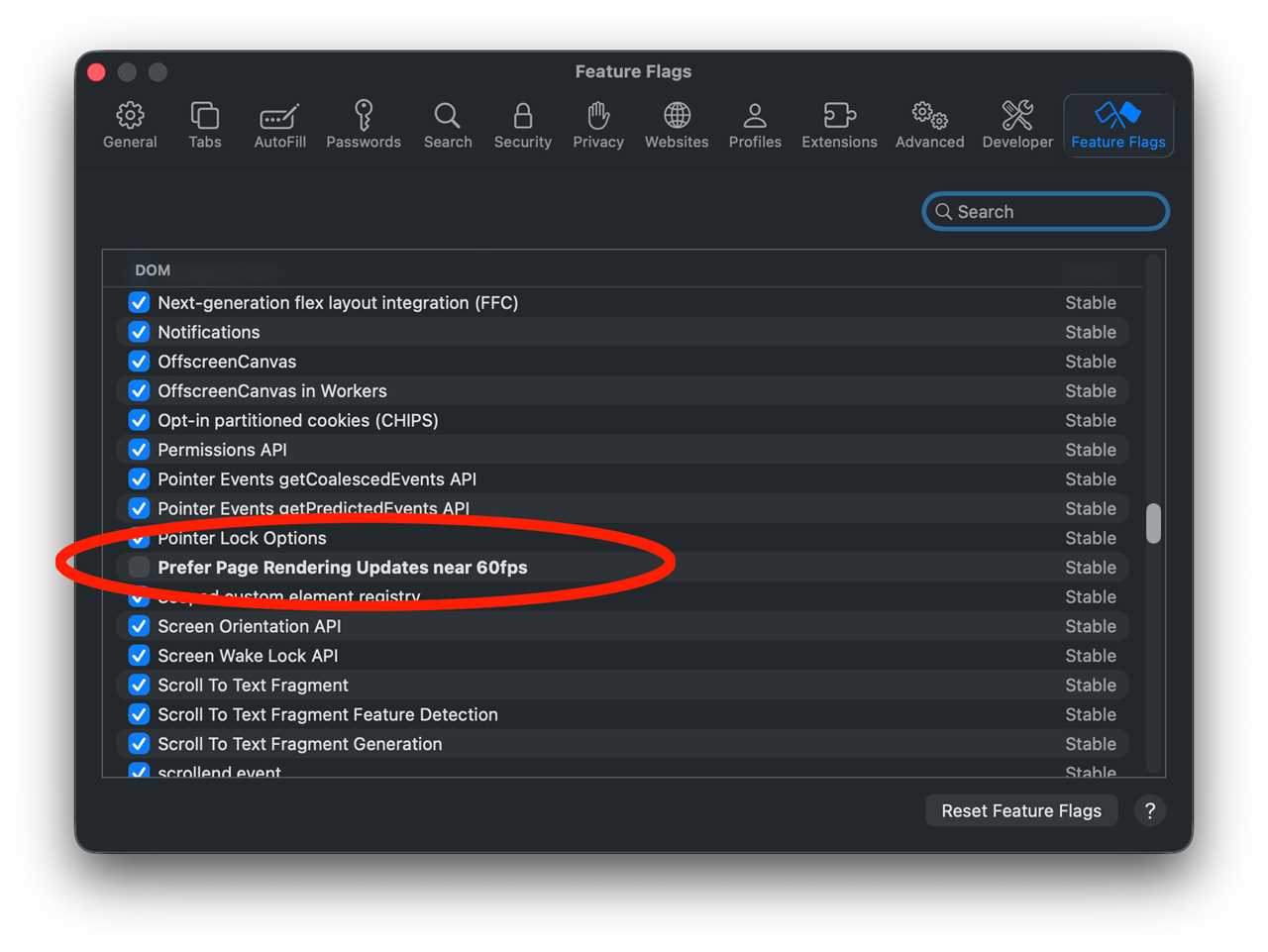
Foundry
The majority of Safari Feature Flags won’t be of much use, but you can’t cause too much harm by experimenting with them. Just make a note of the ones you change so you can put them back if something breaks, and change one at a time. Some flags let you do things like disable transition animations or lazy image loading, for example, which you may prefer in some circumstances.
Feature Flags on iOS or iPadOS
To change this setting on your iPhone or iPad, open the Settings app, then select Apps at the bottom of the page. Scroll down to Safari and select it.
Scroll all the way to the bottom and tap Advanced. Then on that page, scroll to the bottom to select Feature Flags. There is no search here, but the flags are in alphabetical order. Look for Prefer Page Rendering Updates near 60fps and turn that off.
You’ll have to quit Safari here too (swipe up from the bottom of the screen to enter the app switcher and then swipe up again on the Safari screen), and re-launch it to apply the change.
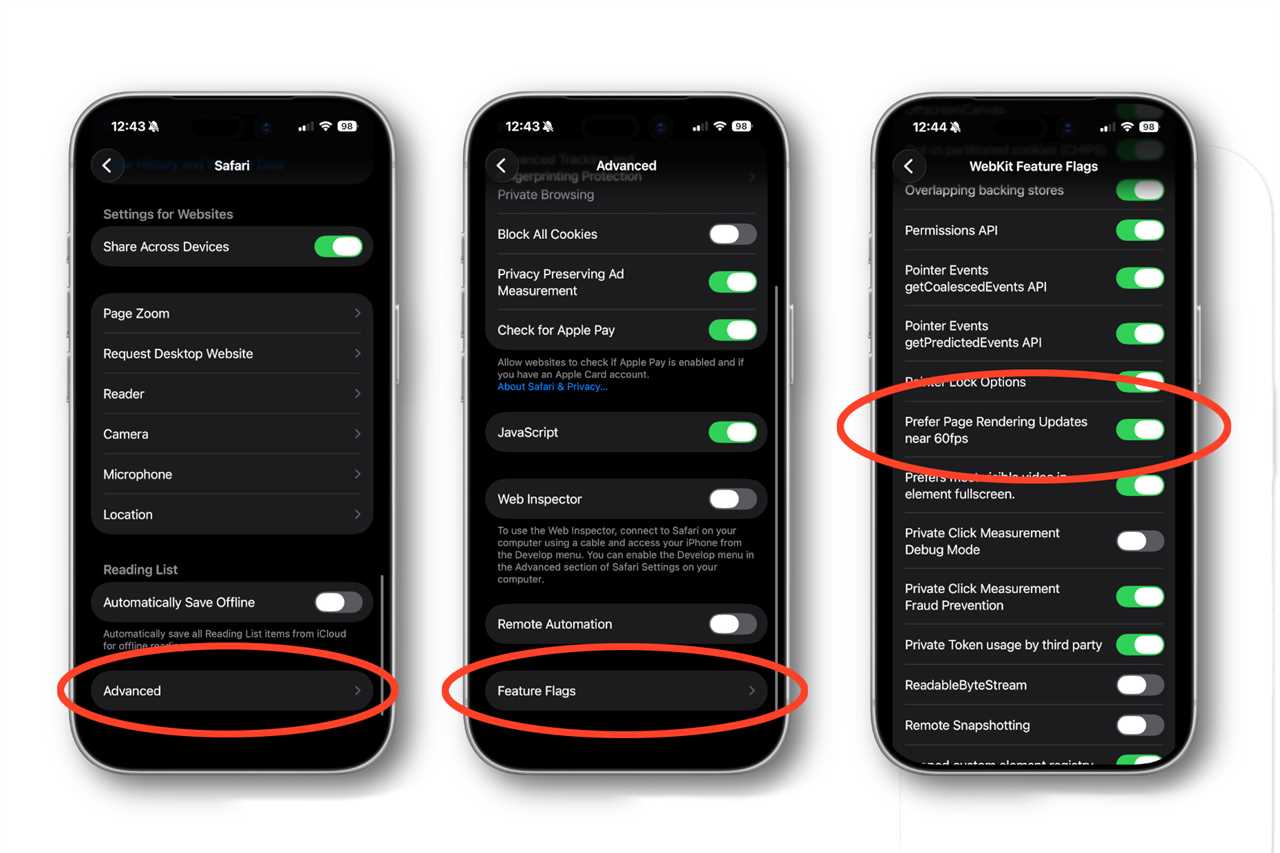
Foundry
As with Safari on macOS, you probably shouldn’t mess around with too many of these Feature Flags, but you can’t cause too much damage if you do, as long as you know what you’ve changed so you can put it back.
Allowing Safari to render above 60fps is generally considered to be a battery drain, but exactly how much depends on how often you use it and the kind of content you consume. So just keep an eye on your battery life, and if it’s significantly shorter, go back and re-enable this Feature Flag (and restart Safari).
Read More
Title: Enable ProMotion scrolling and more with these hidden Safari settings
Sourced From: www.macworld.com/article/3040366/enable-faster-scrolling-in-safari-and-more-with-this-hidden-setting.html
Published Date: Thu, 29 Jan 2026 14:21:00 +0000