.png)
Macworld
The AirPods Pro 3 are Apple’s most feature-rich earbuds, offering advanced tools and settings to fine-tune users’ everyday listening experience. From touch and pressure sensitivity to health monitoring and immersive audio output, the latest AirPods are jam-packed with futuristic technology, despite their miniature design.

The AirPods Pro 3 are highly customizable, letting you control the stem behavior, audio output, charging habits, and much more. While the default preferences work well for most users, there are some settings you may want to adjust to better suit your life.
It’s worth noting that some of these options are exclusive to the AirPods Pro 3, while others also work with other select models, such as the AirPods 4 and Pro 2.
1. Pairing process
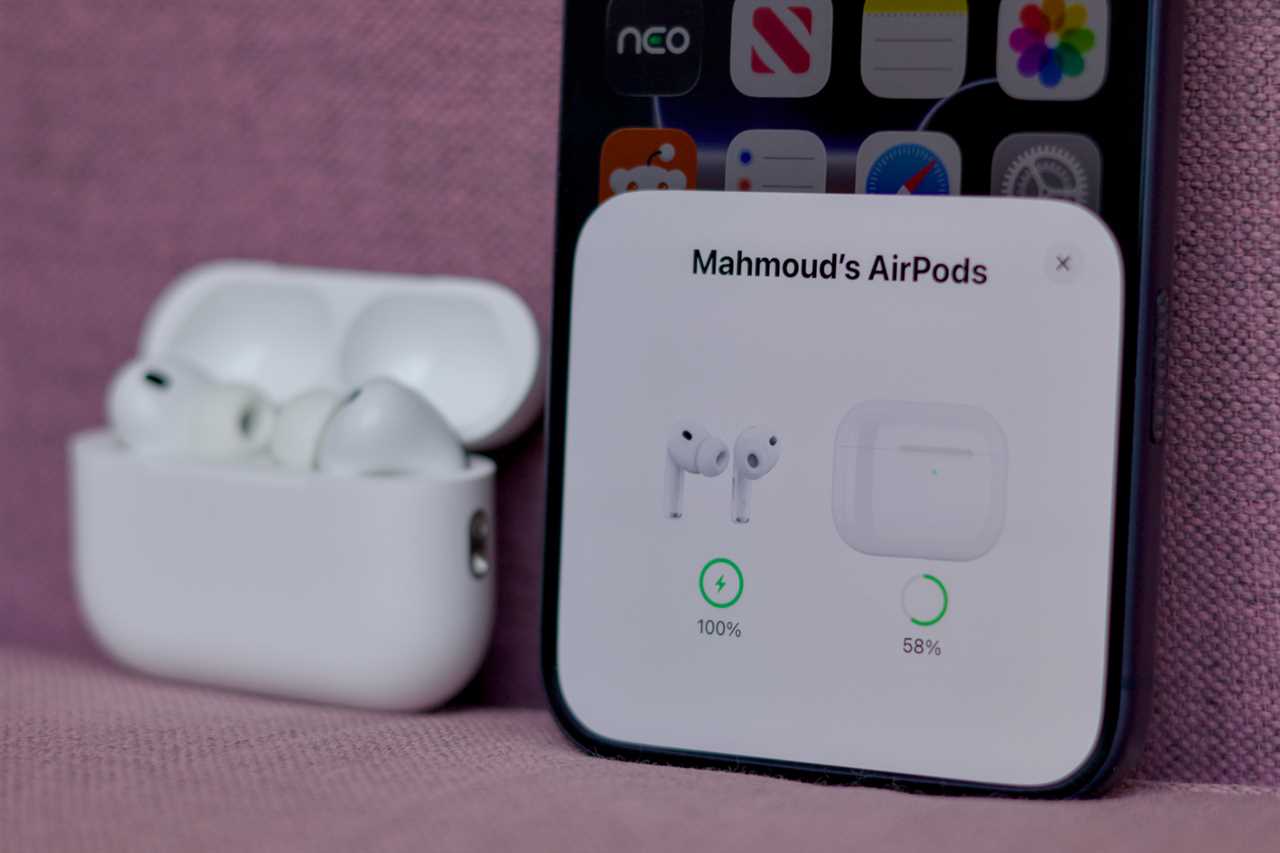
Pairing your AirPods Pro 3 with your iPhone requires a one-time, straightforward setup. Simply place the charging case next to your iPhone and open its lid. A relevant sheet should instantaneously pop up on iOS—hit the Connect button. Once done, your iPhone will prompt you to tap twice on the charging case’s back to confirm the action. Going forward, your AirPods will automatically connect to your iPhone and any of your iCloud devices whenever you take them out of their case.
Another Apple ecosystem perk is Automatic Device Switching. The feature works by automatically changing the audio source device depending on your playback activity. So, if they’re connected to your Mac and you start playing music on iOS, for example, your AirPods will shift to your iPhone. If you’re unhappy with this behavior, you can head to the Settings app > [your name]’s AirPods > Connect to This iPhone, then select When Last Connected to This iPhone (rather than Automatically).
Foundry
2. Audible announcements
Your AirPods Pro 3 can announce incoming notifications, which can be helpful when your iPhone is out of reach. The feature, however, can become too intrusive if you receive lots of messages, as it’ll constantly interrupt your music and lower its volume to read every delivered text. Fortunately, you can turn it off completely or for select apps by going to Settings > Notifications > Announce Notifications.
If you’ve opted for notification and call announcements, you can also customize the AirPods Pro 3’s head gestures. The feature lets you interact with alerts by nodding or moving your head side to side. You can try and customize these shortcuts by going to AirPods settings and visiting the Head Gestures menu.
3. Tailored tips
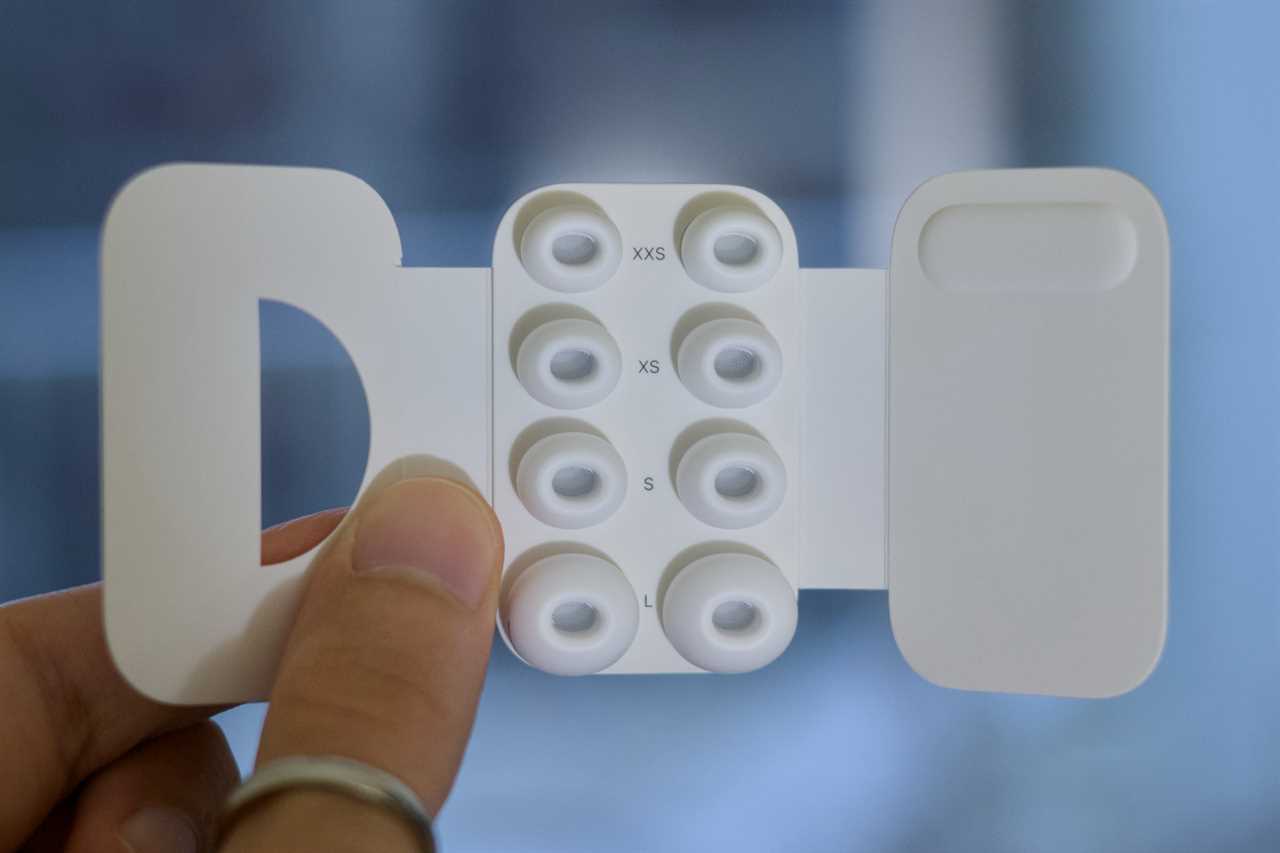
To accommodate different ear shapes, the AirPods Pro 3 support five tip sizes. If the default medium ear tip feels off, you can try one of the other variants included in the AirPods’ box. To confirm that the seal is good, you can go to AirPods settings and tap on Test Acoustic Seal. After following the on-screen instructions, iOS will inform you of any needed adjustments.
To improve spatial audio’s performance and precision, you can scan your ears using the Personalized Spatial Audio section. This will create a unique sound profile that syncs across all of your compatible Apple devices.
Foundry
4. Stem settings
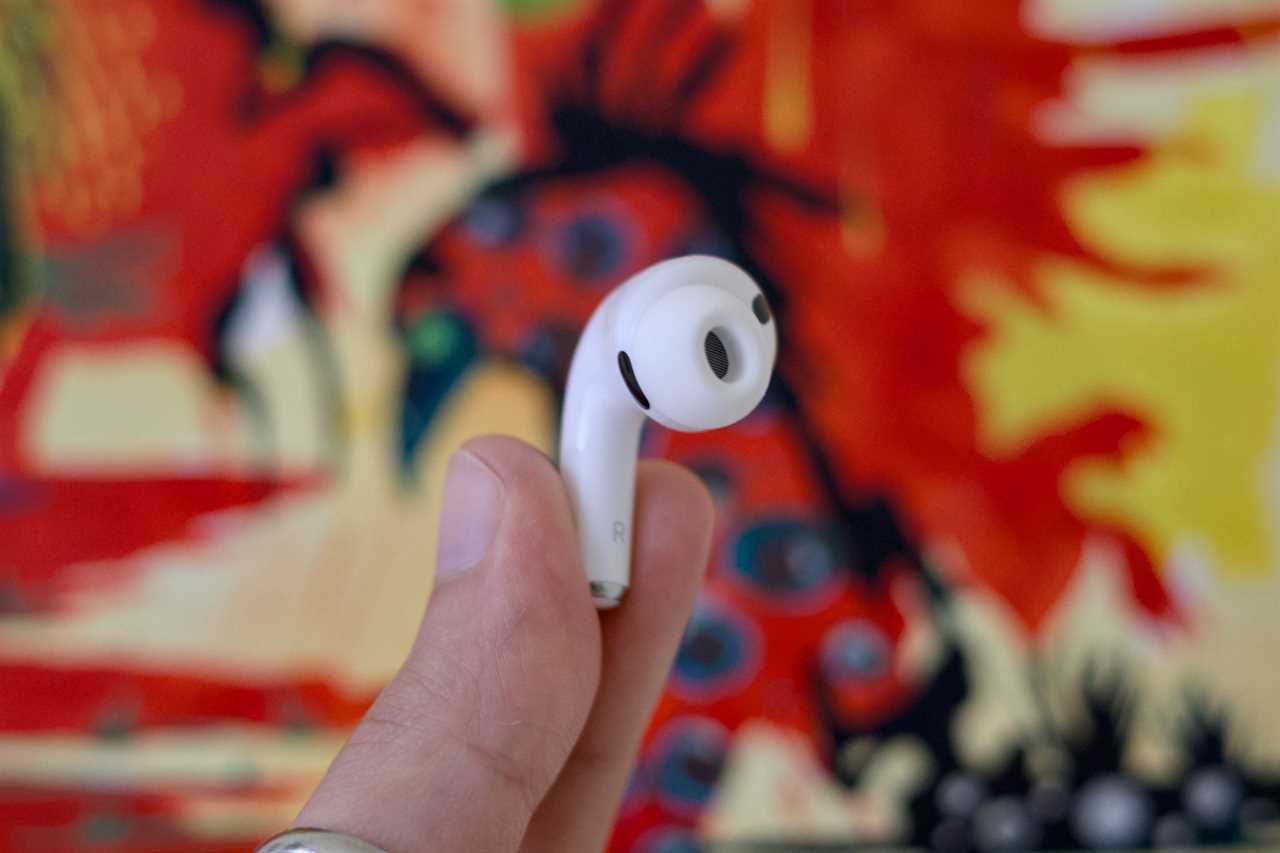
The AirPods Pro 3’s stems can react to your presses and swipes. To customize what pressing and holding does to either stem, you can head to Press And Hold AirPods in AirPods settings. This lets you pick between triggering Siri and toggling ANC or other Listening Modes.
Similarly, you can choose what single and double stem presses do during a call under the Call Controls menu. This enables you to quickly mute/unmute an ongoing call or end it without interacting with your iPhone. Likewise, you can press once or press and hold when the Camera app is open to shoot by setting up the Camera Remote feature under the Camera Control menu.
If you tend to run under the pouring rain, then the water drops will likely trigger the swipe gesture on the AirPods’ stems and lower the volume of your music. To disable the touch-sensitive surface, go to Accessibility in AirPods settings and turn off Volume Swipe.
Foundry
5. Hearing help
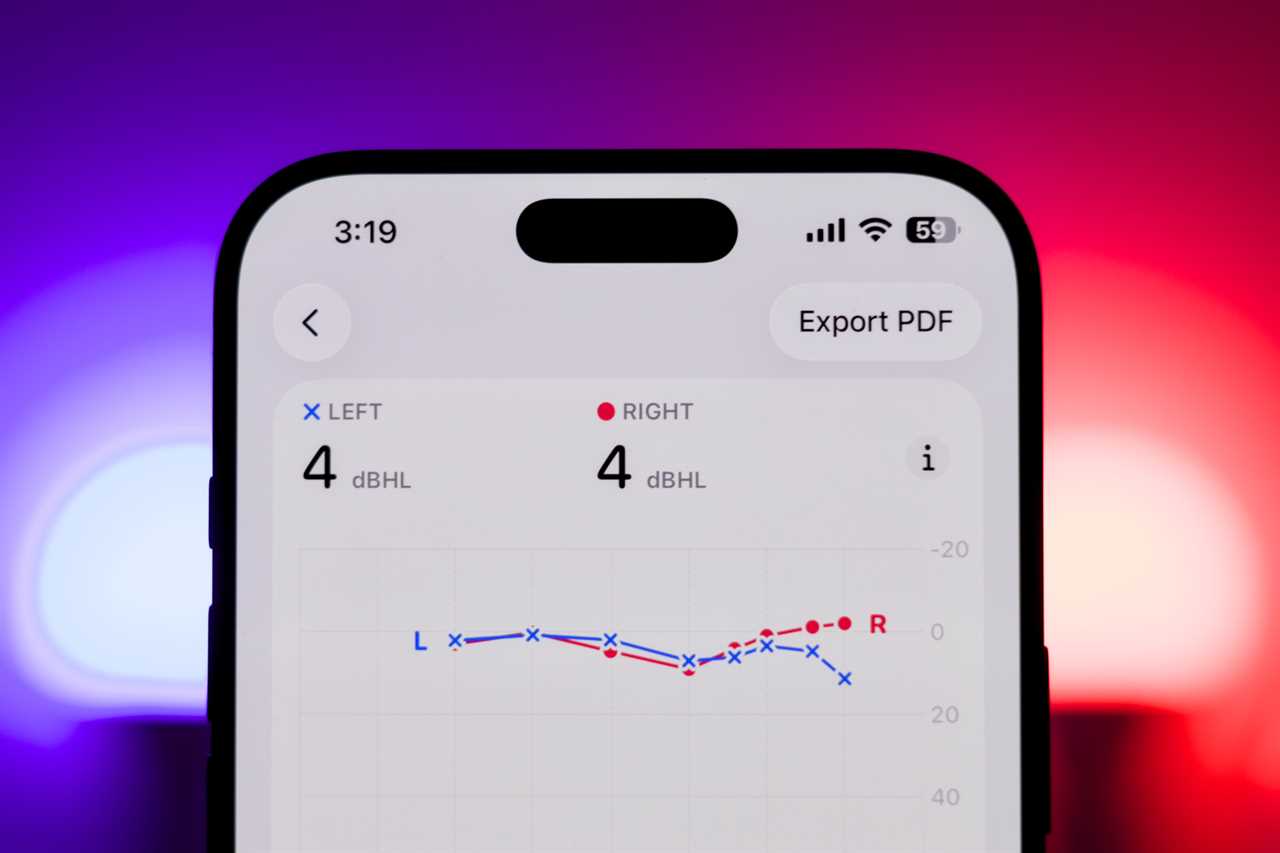
The AirPods Pro 3 can evaluate your hearing and double as hearing aids if needed. To get started, go to AirPods settings and tap on Take a Hearing Test. Once the test concludes, you can enable the Hearing Assistance feature if hearing loss has been detected. This will amplify surrounding sounds based on your personal test results.
Foundry
6. Battery boosting
If you tend to leave your AirPods’ case charging overnight, it’s best to enable the Optimized Charge Limit option under the Battery menu in AirPods settings. The feature learns from your usage habits and pauses charging as needed to preserve your battery’s health.
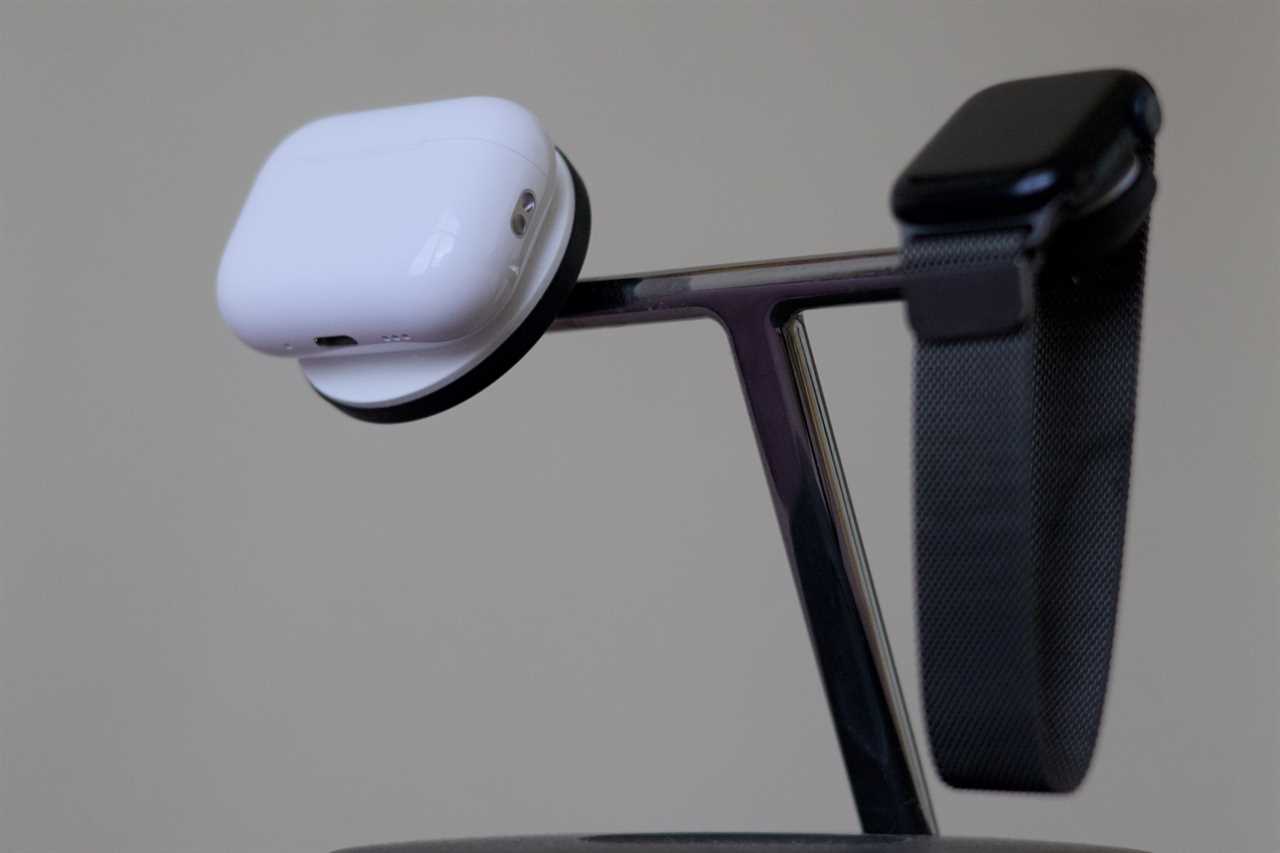
Speaking of the battery, you may also want to familiarize yourself with the compatible charger types. You can top up the AirPods Pro 3 case using a USB-C cable or opt for one of the several wireless charging options. These include Qi, Qi2, MagSafe, and Apple Watch wireless chargers.
Foundry
7. Cardio controls
The AirPods Pro 3 offer a heart rate monitor to collect data during workouts. However, the sensor measures your heartbeat even when you’re wearing an Apple Watch, which can consume power unnecessarily. To prolong your AirPods’ battery life and limit the potentially redundant readings, you can disable the Heart Rate toggle in AirPods settings if you’re relying on an Apple Watch.
8. Translation training
If you’re living in a foreign country or plan to visit one soon, the AirPods Pro 3 can translate your conversations in real time. For the feature to work, however, you will first need to download the relevant language pair to your iPhone. Go to Languages in AirPods settings, then download the needed packages. Once ready, you can press and hold both stems simultaneously to initiate a live translation session.
9. Sleep sensing
Your AirPods Pro 3 pack sensors that can detect when you fall asleep. If you tend to snooze while listening to your favorite podcast or playlist, you can toggle Pause Media When Falling Asleep in AirPods settings to automatically stop the playback whenever you doze off.
10. Beta builds
This one’s for the adventurous, tech-savvy users. If you’re keen on trying new AirPods features before they launch to the general public, you can enable the toggle under AirPods Beta Updates in AirPods settings. For this to work, however, you’ll first need to be running the iOS beta on your paired iPhone.
Keep in mind that beta firmware can break essential features or brick your AirPods altogether. There’s no easy way to downgrade to the latest stable firmware or revive your AirPods if they die or you’re unhappy with the experience. If these are risks you’re willing to take, you can get a sneak peek of upcoming software additions and provide feedback to Apple.
Read More
Title: Just got AirPods Pro 3? These 10 tips will turn you into an instant expert
Sourced From: www.macworld.com/article/3016225/just-got-the-airpods-pro-3-here-are-10-things-you-should-do-first.html
Published Date: Fri, 26 Dec 2025 11:30:00 +0000