Sometimes, you need to turn a piece of paper into a digital file. Maybe you need to include a receipt, registration, or other form of proof in an online form. Maybe you want to keep copies of your important documents in the cloud, so they’re always accessible and safe from being lost or destroyed. Such documents are often digitized as PDF files.
It used to be that you needed to use either dedicated hardware or a third-party app to take a photo of a document and convert it to PDF. That is no longer the case: Apple includes a very handy document scanner in the iPhone’s Notes and Files apps, and it does a surprisingly good job. Because it’s not very obvious, you’d be forgiven for not even knowing it exists.
Here’s how you scan documents using an iPhone. We also cover how to convert the scan into a PDF and how to autofill the PDF on an iPhone.
We also have a round up of the best free PDF editors for Mac and explain How to edit a PDF on a Mac. You may also be interested How to create a PDF on an iPhone. Want to try something other than Preview? Take a look at our Best PDF Editor for Mac round-up.
1.
How to scan a document on iPhone using Notes
Foundry
Open the Notes app.
Create a new Note or select an existing one.
Tap the paperclip icon and select Scan Documents.
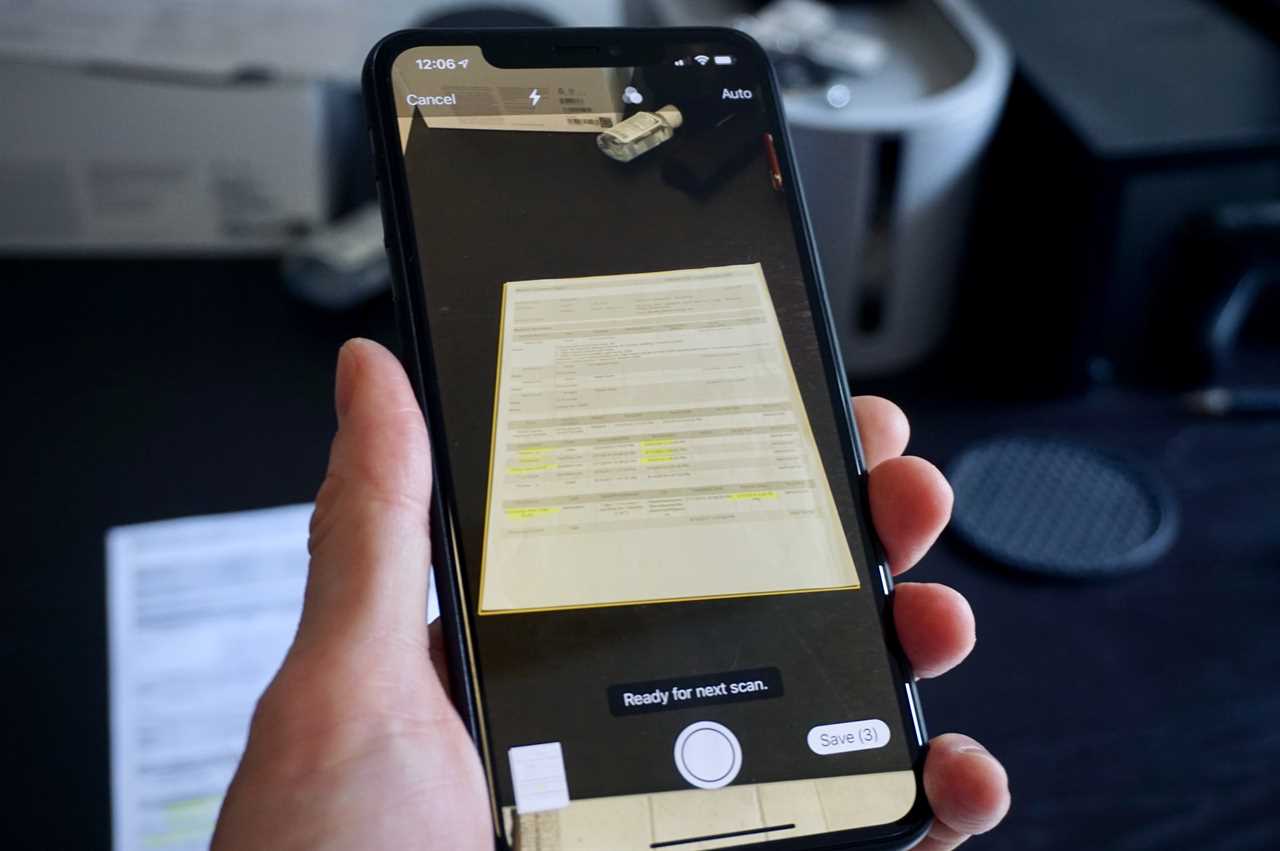
Hold your iPhone over your document until it is highlighted. Try to get it as level and square as possible.
Either hold your iPhone still until the scan captures automatically or press the shutter.
Depending on whether you are happy or not choose Retake or Keep.
Unhappy with the scan? There are two modes: if you use Auto (a small “A” appears on the Shutter option above the shutter button), Notes captures a page whenever it detects a document. Most of the time the results are pretty accurate, but if they aren’t good enough you can switch to Manual by tapping the Shutter option. Your iPhone will take irregular rectangles and attempt to straighten them out.
Continue scanning until all pages are captured, then tap the checkmark in the upper right.
Notes will attempt to extract some text at the top of the document to use as its title.
2.
How to turn a Notes scan into a PDF
Foundry
The method above allows you to scan a document into Notes, which is useful if you want to store your scans in Notes. But what if you’d rather save it as a PDF?
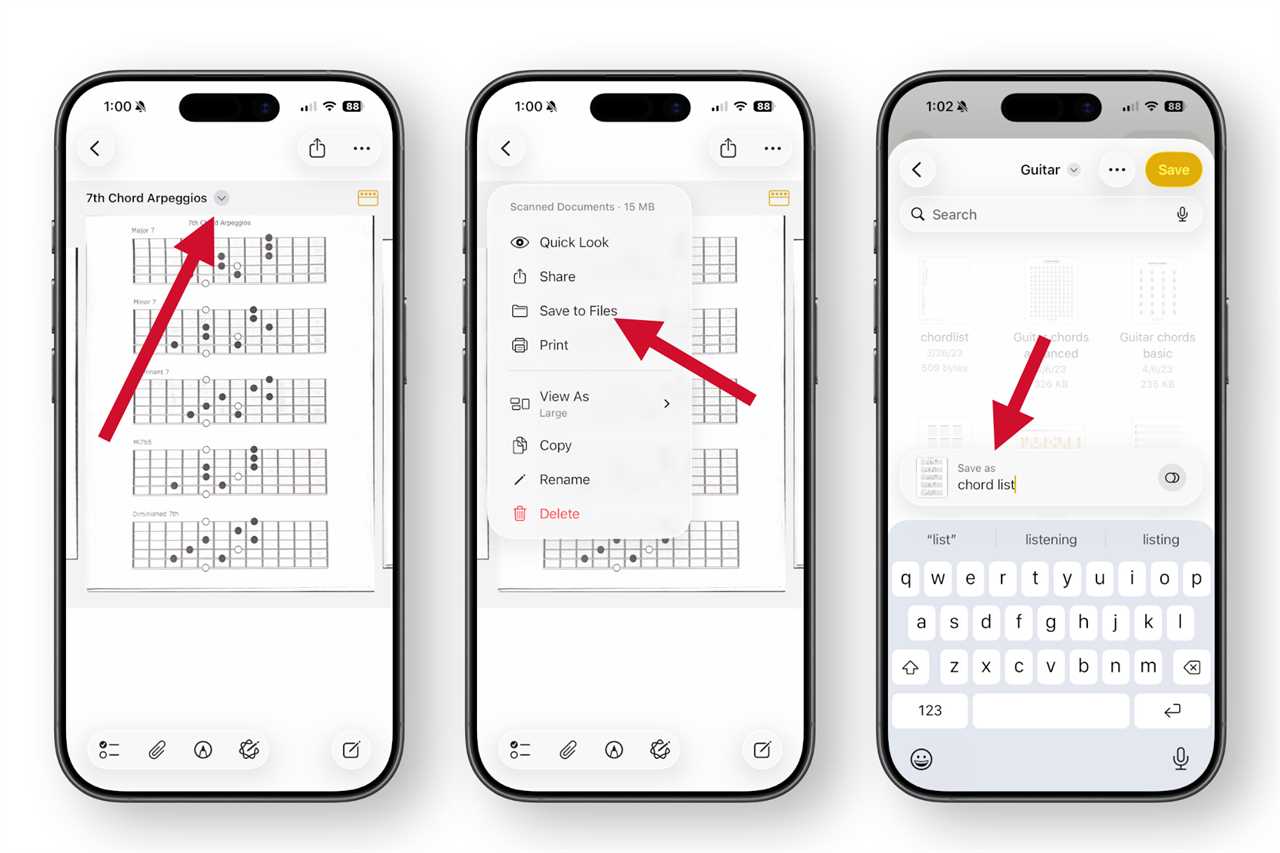
Open a Note containing a scanned document.
Tap the little down arrow next to the name of your scanned document.
Choose Save to Files.
Select a folder within Files in which to save a PDF of the scan.
Give the file a name (and tags if you wish) by tapping at the bottom of the screen.
This will save the scan as a PDF in that location on your iPhone.
3.
How to scan a PDF directly to Files on iPhone
Foundry
You don’t have to save your scan in Notes, you can also scan directly into Files, where your document will automatically be saved as a PDF.
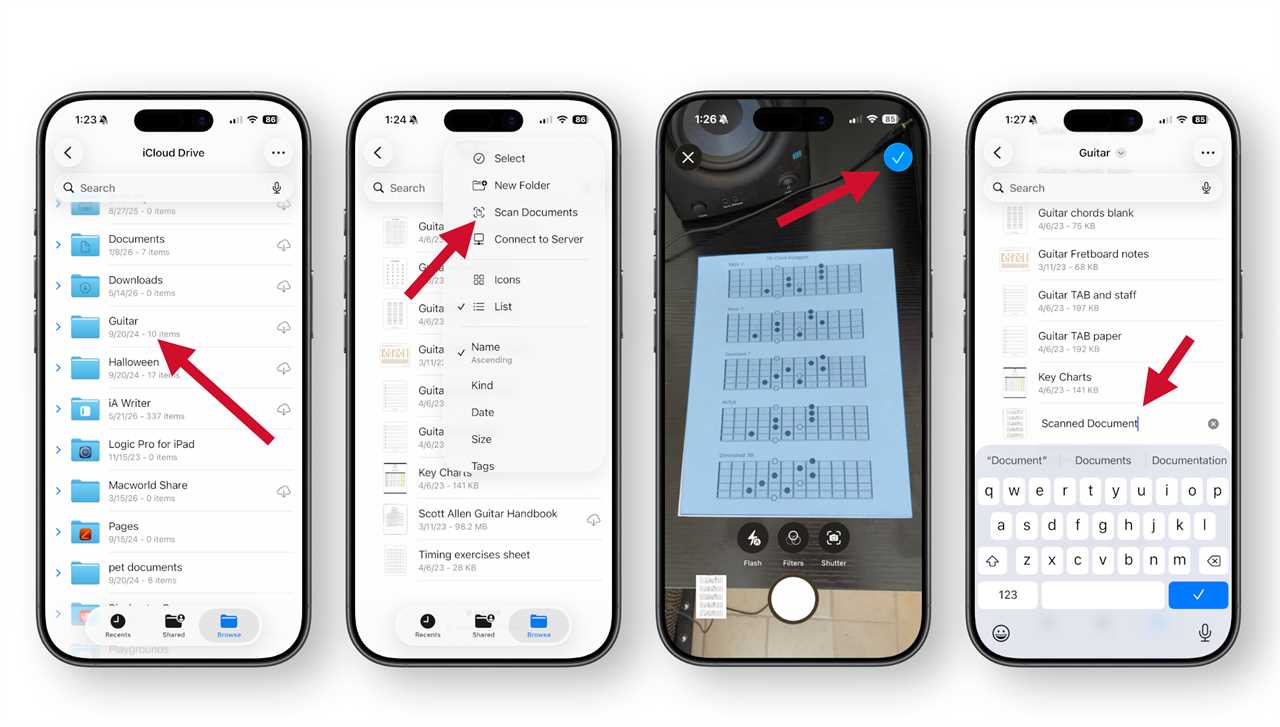
Open Files on your iPhone (or iPad).
Choose a location to save your scan.
Tap the more button (…) in the upper right, and choose Scan Documents.
Line up your document and tap the shutter, or hold the iPhone still to automatically capture the image. If you use the shutter, you can drag the corners to adjust.
Once you are happy tap Keep.
Add additional scans if required and tap the checkmark in the upper-right when you’re done.
The scan will be saved in your chosen location as a PDF, and likely named “Scanned Document.” Change the name to whatever you wish.
4.
How to sign or fill in in a PDF on iPhone
Foundry
Now that you have your PDF scanned onto your iPhone it is easy to fill it in. In fact, your iPhone can even use AutoFill to complete some parts of the PDF.
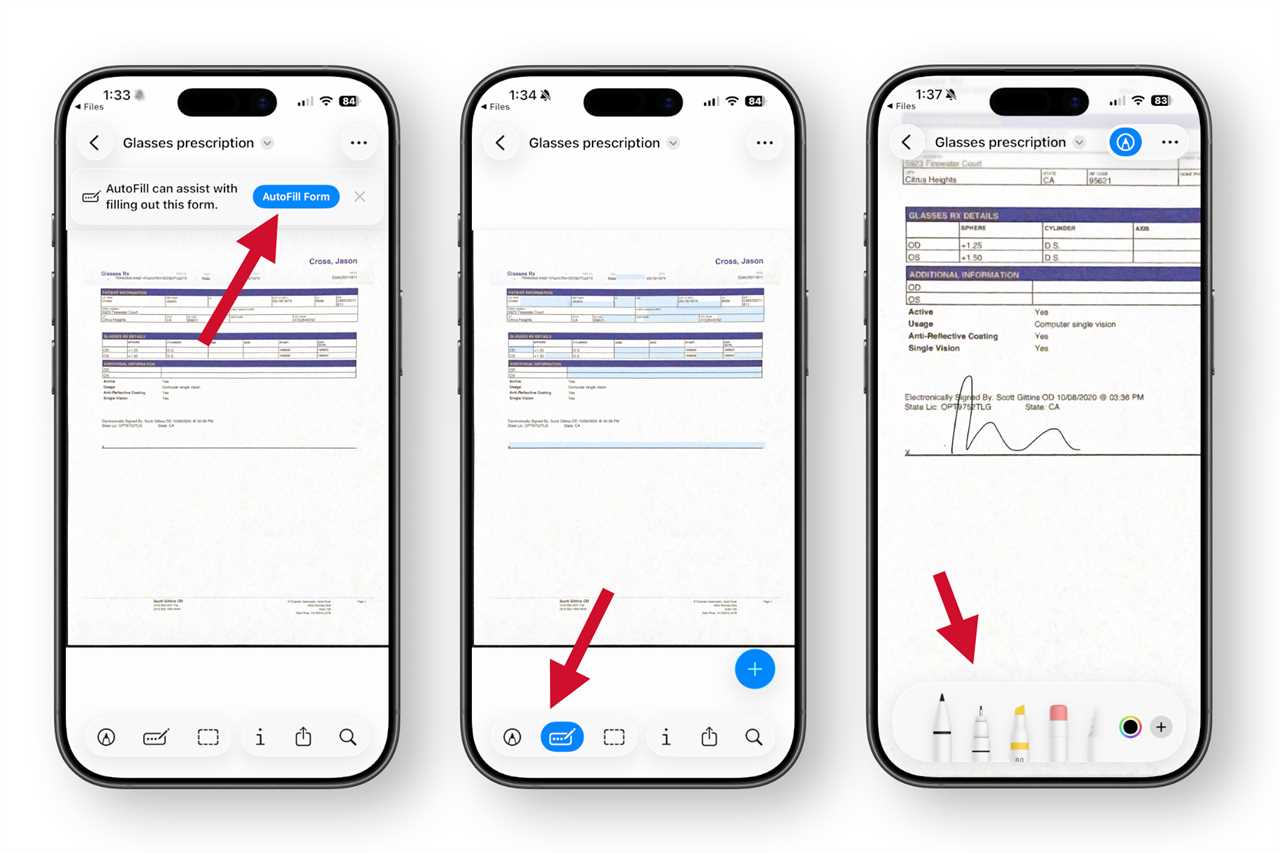
Open a PDF (scanned or otherwise) in Files and you’ll see an option to Autofill Form. This will detect fields and fill them in with your name, address, phone number, etc. as long as they are filled out in your Contact card. See how to autofill passwords, names and addresses.
Tap any highlighted field to fill it in with text. Tap the “fill in fields” button at the bottom to enter this mode at any time.
Tap the markup/pen icon at the bottom to freely draw on the PDF — to sign your name, for example.
Use the drawing tools to write on the screen to sign your name or mark up the PDF in other ways.
You might find it easier to fill in a PDF on a Mac, read: How to edit a PDF on Mac.
5.
Tips for taking better scans
Foundry
Turn on some lights. Taking any photo in a well-lit area makes things clearer.
Try to place your document on a dark background, like a dark table or floor. Your phone should be able to clearly detect the edges.
Take the scan from directly above the documents, centered and facing straight down.
If you find the auto-scan feature to be too sensitive, just turn it off and use the shutter button. This is especially useful if your document has multiple pages.
------------ Read More
Title: How to scan documents on iPhone and save them as PDFs Sourced From: www.macworld.com/article/232686/how-to-scan-documents-and-make-pdfs-on-your-iphone-or-ipad.html Published Date: Thu, 28 May 2026 14:30:00 +0000
Share This
Latest Posts
Multi-User Cloud Accounting Guide
November 4, 202633 Views
From reactive reporting to proactive advisory: How AI is reshaping the role of accountants
.png)